

Want to present the Google reviews widget on Elementor website? In this article, we’ll explain why and how to use Google reviews for your business purpose.
Google reviews help you to add rich snippets to your Google search engine results via the schema markup. You can further customize and play with the visual aspects of the customer reviews and choose the minimum rank to be displayed.
Right now, you will learn the easiest way tothe embed Google reviews widget on the Elementor website. These easy steps are so straightforward that even if you have a non-technical background, you can still adopt these simple steps and easily add Google review widget to your Elementor website.
Quick Guide To Embed Google Reviews Widget On Elementor Website Using Social Media Aggregator Tool Like Tagembed:
A). Sign-up for free to Tagembed or in case you are an existing user, sign in by using Tagembed credentials.

B). You will land on the Tagembed Widget Dashboard window.
- For new users, the first widget will be ready and visible on the screen, click on the Open button to proceed.
- And if you are an existing user looking to create a new widget, then click on the Create Widget button on the top right corner of the screen, provide a name for your widget, and click on Create Widget to continue.

C). In the new Pick a source dialogue box, click on the Review Widget tab and pick Google reviews from the provided options.

D). A pop-up window titled Create Google Reviews Feed will appear on your screen. You now have two choices for collecting the Feed.
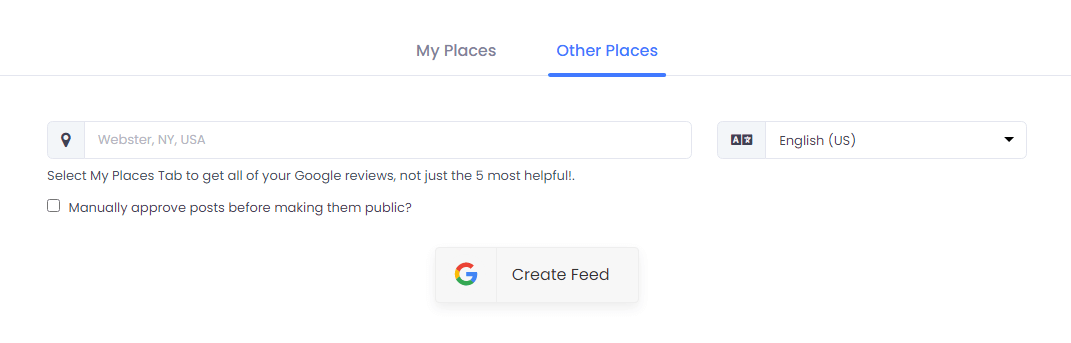
- My Places: That allows you to collect and display all Google reviews from your Google My Business Account
- Other places allow you to display 5 reviews from your Google My Business account.
Select your feed aggregation connection and fill in the required fields. And Complete the needed credentials to fetch the feeds.
E). Finally, click Create Feed to begin the process of integrating and click the Embed Widget button in the screen’s bottom-left corner.

F). Choose Your Platform dialogue box will appear on your screen. Click on Other from the provided options

G). On the new dialogue box, you can set the widget’s width and height. And once you are satisfied with your modifications, click on the Get Code button and copy the code that appears.

H). Select the pages to which you wish to add Google review by logging into your WordPress Admin account.
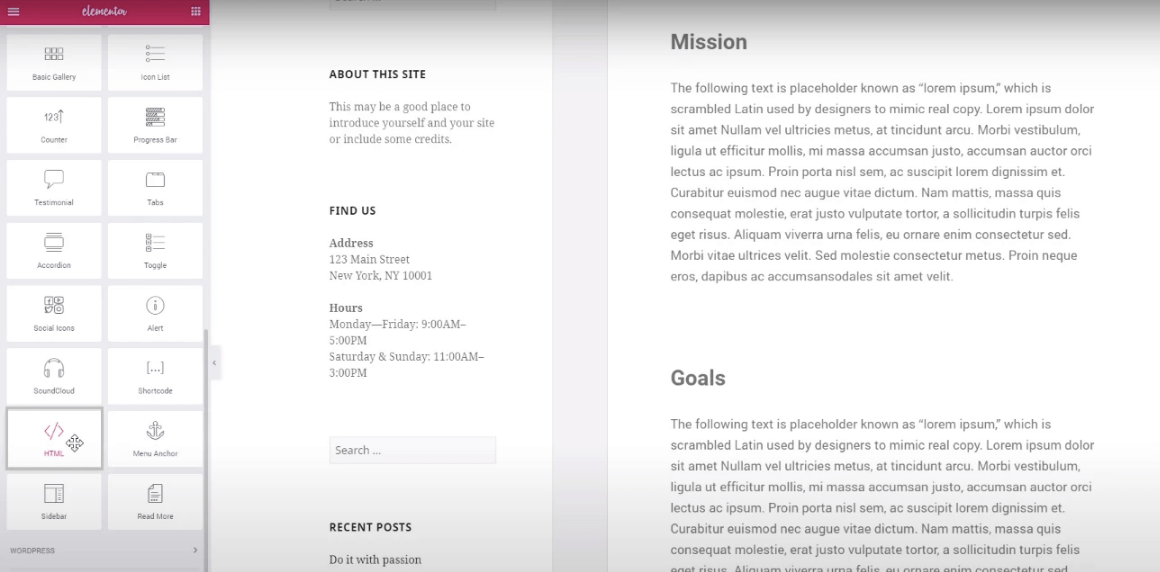
I). Select Edit with Elementor, then drag and drop the HTML element to the chosen part of your website page where you want to the embed Google reviews widget, paste the code, and click Update to finish the process!
Why Do You Need Google Reviews?
There are multiple reasons why you need Google & business reviews displayed on your Elementor website:
- It helps to increase brand awareness and generate leads.
- It helps to boost your rankings on Google search by showing that you are continually updating your website.
- Keeps visitors on your website and increases engagement levels.
- Encourages people to follow you.
- Saves you time adding new content to your website.
- It increases your content reach.
- Helps you connect with customers and build customer trust.
Final Words
We have given you some effective yet simple ways to embed Google reviews on Elementor website in a second.
Add Google review widget on the Elementor website using Tagembed Widget, keep your website up-to-date and increase your brand’s trust significantly!
Amazing Tagembed Widget is perfect and the simplest solution to embed your amazing Google reviews on the Elementor website in seconds. Tagembed Widget lets you collect your customer reviews from my places and other places with multiple languages.
 The Social Media Widget - SMW Blogs
Leave a comment