

Do you want to learn how to display your Twitter feed on the Elementor website for free?
If you want to without coding builds beautiful web pages for your Elementor site, Elementor is one of the best choices to create engaging pages without touching a single line of code.
And the mind-blowing news is there’s an easy way to make your web pages even more engaging. You can quickly add the Elementor Twitter feed to your WordPress website.
Add Twitter Feed On Elementor Website For Free (Without-Any-Coding)
Right now, we will show you how to quickly add a Twitter feed on Elementor in just a few easy steps are:
A. Log In & Aggregate The Twitter Feeds
1. To begin, either create a Tagembed Widget account or log in to an existing one.

2. You will be sent to the Tagembed Widget Dashboard. To begin adding Twitter feeds to your widget, select Add Social Media Feeds from the drop-down menu.

[ Tip: You may combine many feeds from different sources, such as Facebook Widget, Trsutpilot Review Widget, and Google Review Widget into one widget.]
3. In the new Pick a source dialogue box, pick Twitter Business as your aggregating feed source.

4. A pop-up window titled Create Twitter Business Feed will open, with six choices for fetching Twitter Feed to Elementor website’s Twitter Widget.

- Hashtag (#): Use hashtags (#) to get Twitter feeds.
- Handle (@): This is used to get feeds from a profile account.
- Mentions: Get a list of Twitter posts that reference your account.
- List – Collects the tweets listed from the list feature of any particular username
- Favorites – Imports all the marked favorites from a particular username
- Advanced – Apply any particular query and display posts as per that.
Select your feed aggregation connection and fill in the required fields. And Complete the needed credentials to fetch the feeds.
5. Finally, click Create Feed to begin the process of integrating Twitter feeds based on your preferences.
Read More – Embed Google Reviews Widget On Elementor Website
B. Generate & Copy The Embed Code For Elementor Twitter Feed
The specific steps for generating Twitter feed embedding code for your Elementor website are given below.
1. Click the Embed Widget button in the bottom-left corner of the screen. You can also view a preview of how your feeds will appear on different devices by clicking the Embed Widget button.

2. Select Other in the new Choose Your Platform dialogue box to produce code for the Other option.

3. A new dialogue box will display. Set the widget’s width and height, then click Get Code and copy the code that appears.
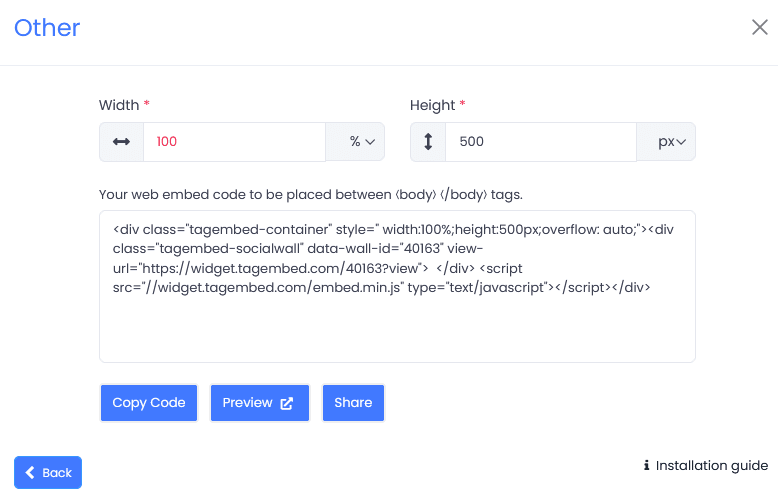
C. Embed Twitter Feed On Elementor Website For Free
1. Select the pages to which you wish to embed your Twitter feed by logging into your WordPress Admin account.
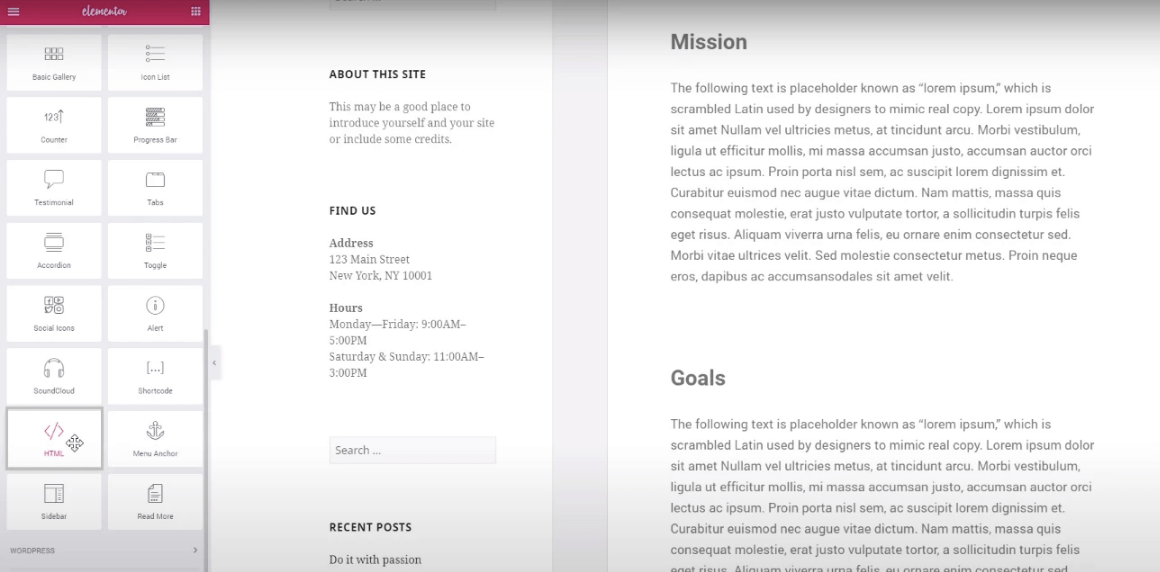
2. Select Edit with Elementor, then drag and drop the HTML element to the chosen portion of your website page where you want to embed Twitter feed, paste the code, and click Update to finish the process!
Voila! You will have added the Twitter feed on the Elementor website.
Read More – Elementor Instagram Feed Tools For 2022
Final Words
Elementor is the best website platform to display your Twitter feed and efficiently boost your user engagement, brand awareness, and visibility, and eventually increase your sales and conversions.
Display Twitter feed on the Elementor website helps build social proof for your brand, making the Elementor website’s overall look more attractive and appealing.
And it helps a great deal in improving your relationship with your customers. If you are a business or a brand and not using the power of social media by embedding your Twitter feed on the Elementor website, then you are surely missing out on a lot.
 The Social Media Widget - SMW Blogs
Leave a comment