

This blog is for you if you want to create good-looking business pages quickly for your Elementor website.
Elementor is one of the best options for beautifying a business website right now. You can enhance the website’s impact by using LinkedIn posts and embedding them without any coding knowledge.
Here is an easy way to add LinkedIn feed to Elementor website.
Embed LinkedIn Feed On Elementor Website – Try Now Without Any Coding
In this article, we’ll show you how to add an Elementor LinkedIn feed to your website in just a few effortless steps:
1. Sign-up to Tagembed for your free account. Or if you are an existing user, then simply log in to your account using your credentials.

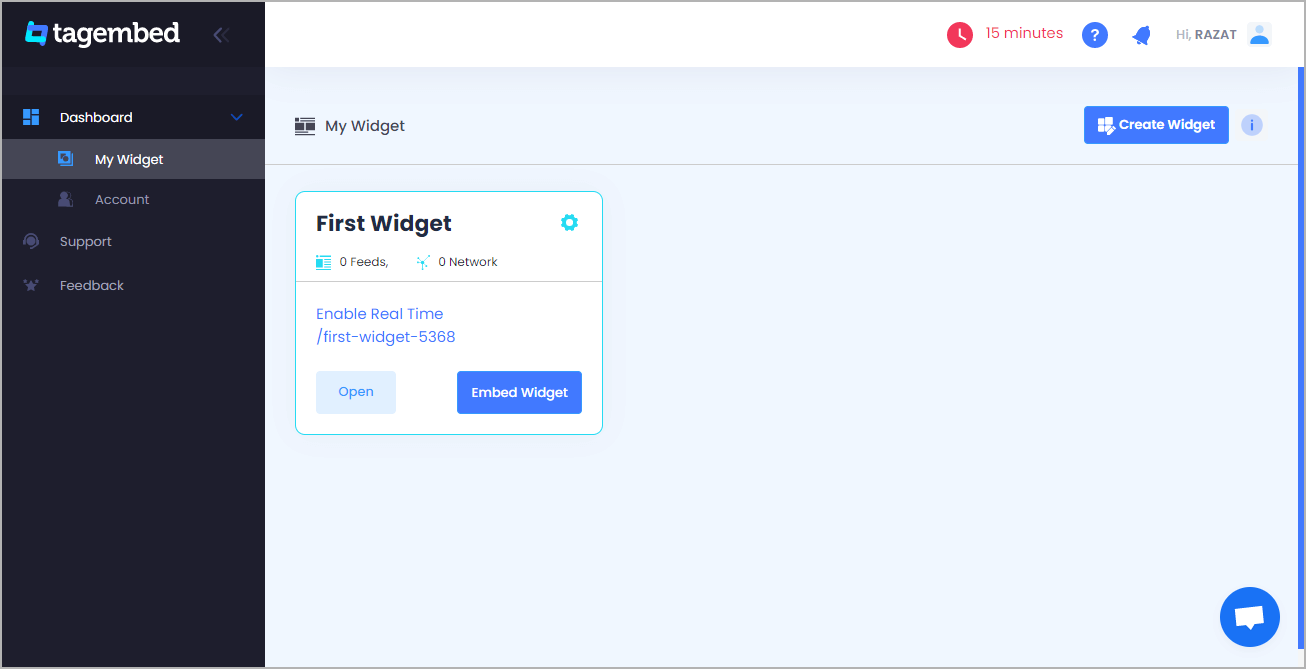
2. The Tagembed Dashboard window will appear on your screen. If you are a new user, your first widget will be ready and visible on the screen. Click on the Open button to proceed. If you are a current user looking to create a new widget, click on the Create Widget button at the screen’s top right corner. Next, provide an appropriate name for your new widget; finally, click on Create Widget to continue.
3. Pick a source dialogue box that will appear on your screen. From the Social Media Widget tab that consists of various social media platforms as options, Click on LinkedIn.

4. Create a LinkedIn widget window that will appear on your screen. You now have 3 choices as options for the source for your LinkedIn feed: Post URL, Company URL, and Profile Post.
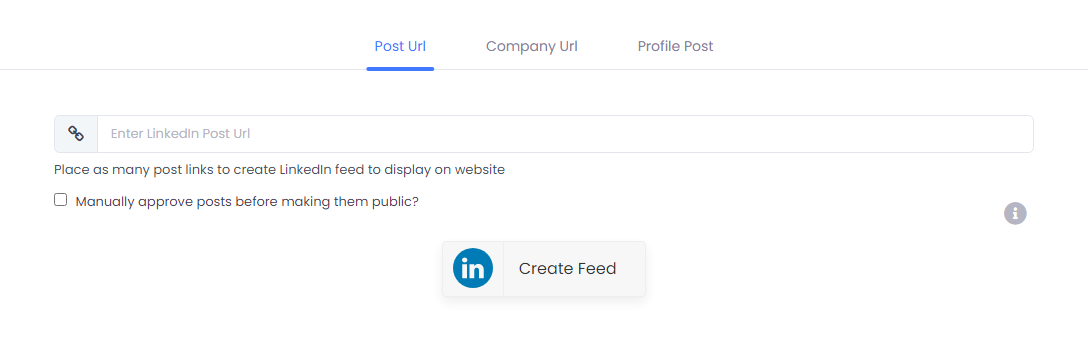
Tagembed also provides an auto-update feature on LinkedIn. You can activate it under the Company URL tab. The auto-update automatically updates the posts, saving you time to manually update or refresh the feed.
Choose the appropriate tab according to your needs. After choosing the source and providing the mentioned details, click Create Feed to begin the aggregation process.
5. Click the Embed Widget button present on the bottom left corner of the screen.
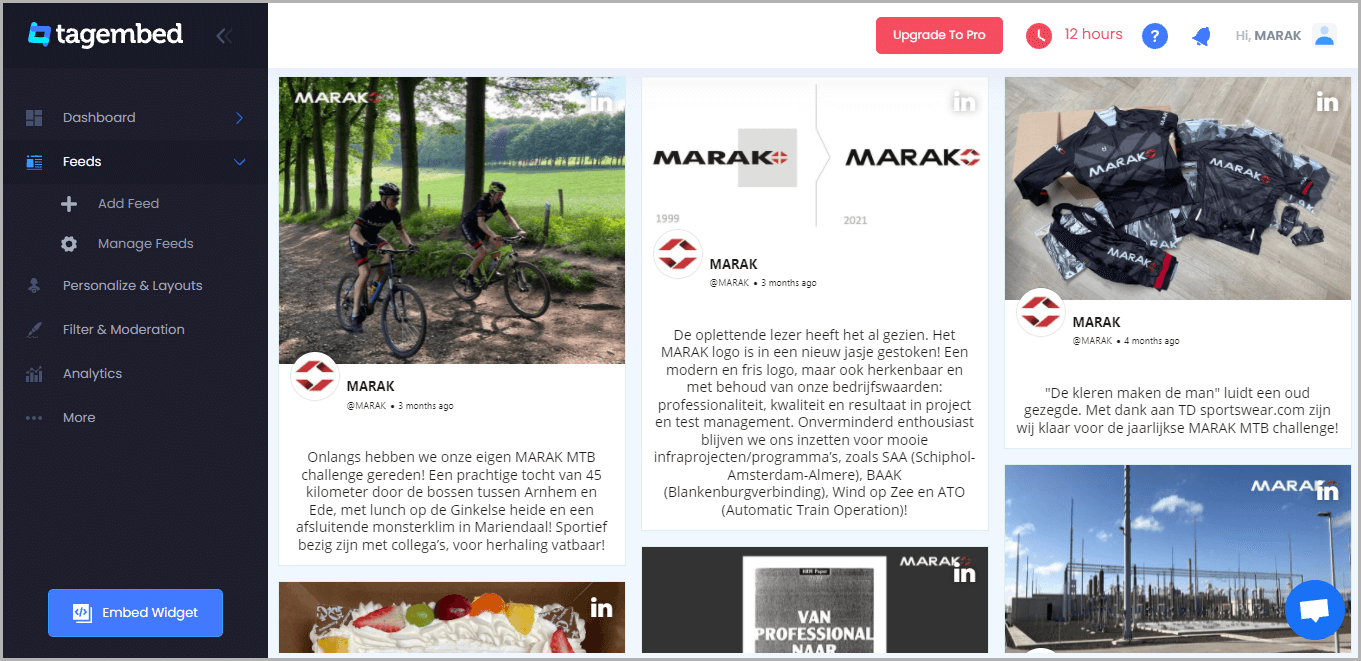
6. A Choose Your Platform dialogue box will appear on your screen, providing various CMS options as platforms. Click on Other from the provided options.

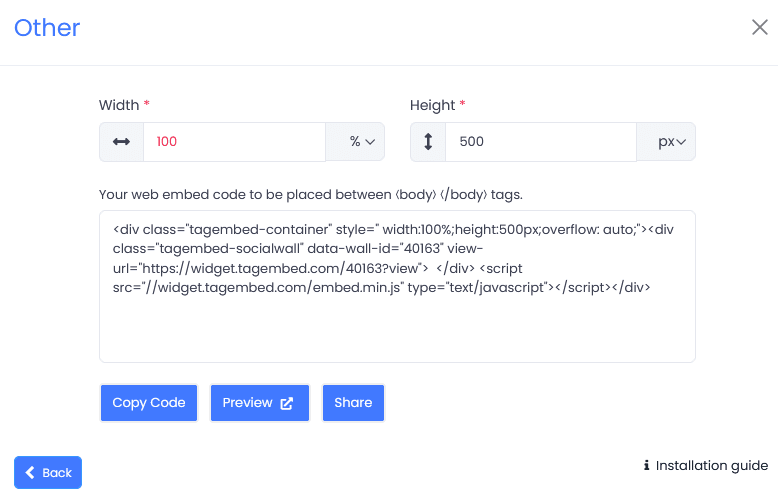
7. In the new window, you can set the widget’s width and height. Once you are satisfied with your modifications, click the Get Code button and copy the code that appears.
8. Select the pages to which you wish to add LinkedIn Feed by logging into your WordPress Admin account.
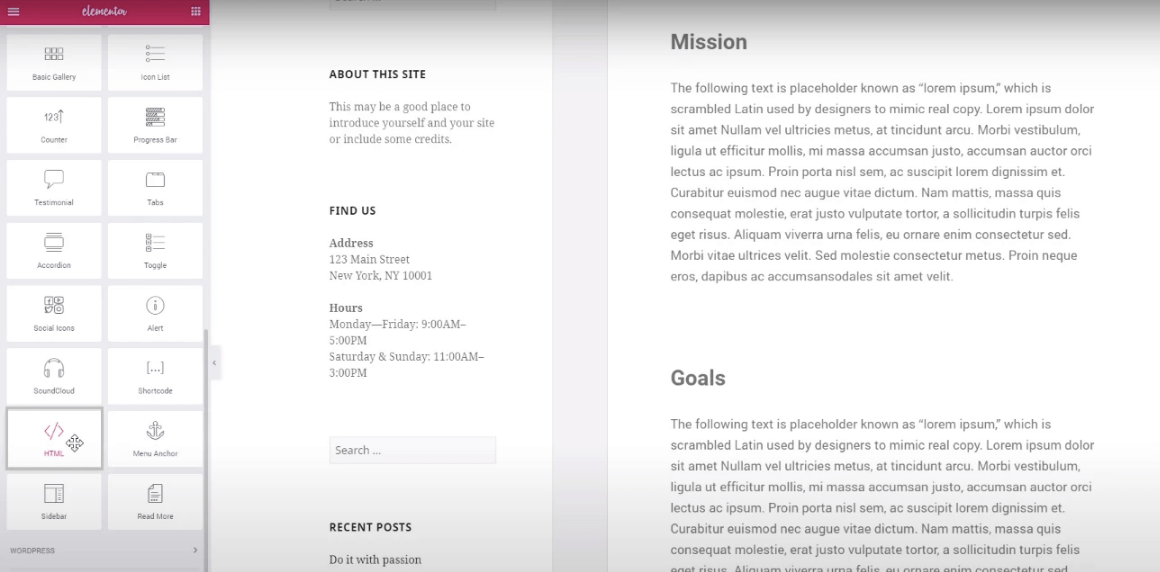
9. Select Edit with Elementor, then drag and drop the HTML element to the chosen part of your website page where you want to embed LinkedIn Feed, paste the code, and click Update to finish the process!
Read More – Embed Facebook Feed To Elementor
Final Words
Adding LinkedIn Feed to your Elementor website is a smart way to make the pages more engaging. As a result, you can efficiently convert visitors into leads and eventually grow your business.
 The Social Media Widget - SMW Blogs
Leave a comment